

Use Tuhmo with Claude and ChatGPT via MCP
Let the AI you already use read and create things in your workspace for you.
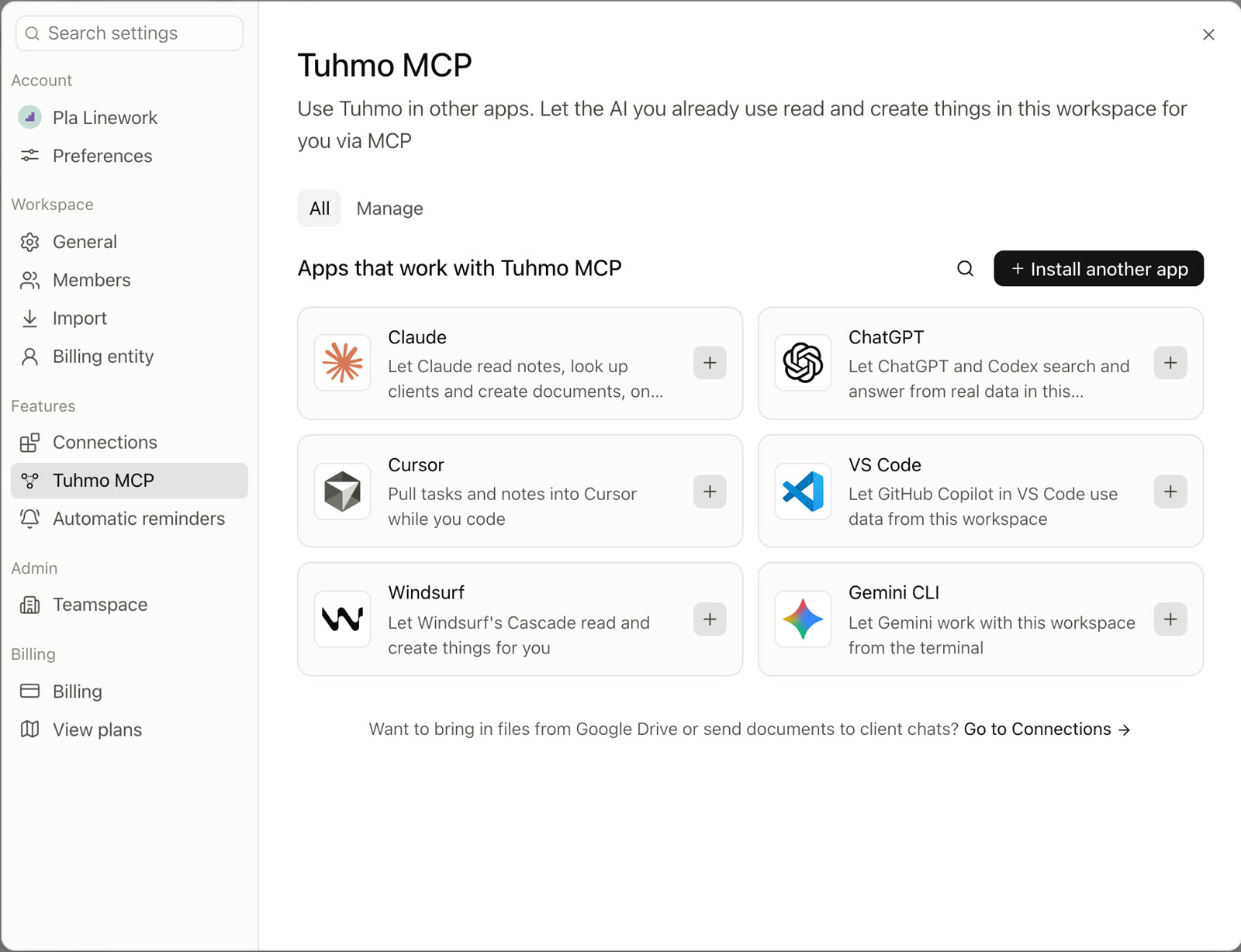
Tuhmo MCP lets AI such as Claude and ChatGPT search and answer from real data in your workspace, like reading notes, looking up clients and creating documents. Claude Code, Cursor, VS Code, Windsurf and Antigravity CLI are supported too.
Connect Claude
- 1
Open Settings › Tuhmo MCP and choose Claude to see the MCP URL
- 2
Open Claude, go to Settings and choose Connectors
- 3
Click Add custom connector and enter the MCP URL in the URL field
- 4
Claude brings you to Tuhmo's consent page to choose a workspace and check permissions
Connect ChatGPT
- 1
Open Settings › Tuhmo MCP and choose ChatGPT
- 2
Open ChatGPT, go to Settings and choose Connectors. If you don't see this menu, turn on Developer mode first
- 3
Click Create and enter the MCP URL in the MCP server URL field
- 4
Allow access on the page that opens
What the AI can do
Read and create drafts are on by default. Sending to clients, money and delete must be checked yourself. Review or uninstall each AI in the Manage tab. Once uninstalled, it loses access immediately.
On the Free plan, AI access is read-only. Letting AI create or change things needs Plus or above.
Was this article helpful?
Next
Plans and the free trial
Start free, and try Plus free for 14 days with no card needed.
Still have questions?
On this page