

Add clients and contacts
Add a client or company with just a name, then add contacts and their channels on the client page whenever you're ready.
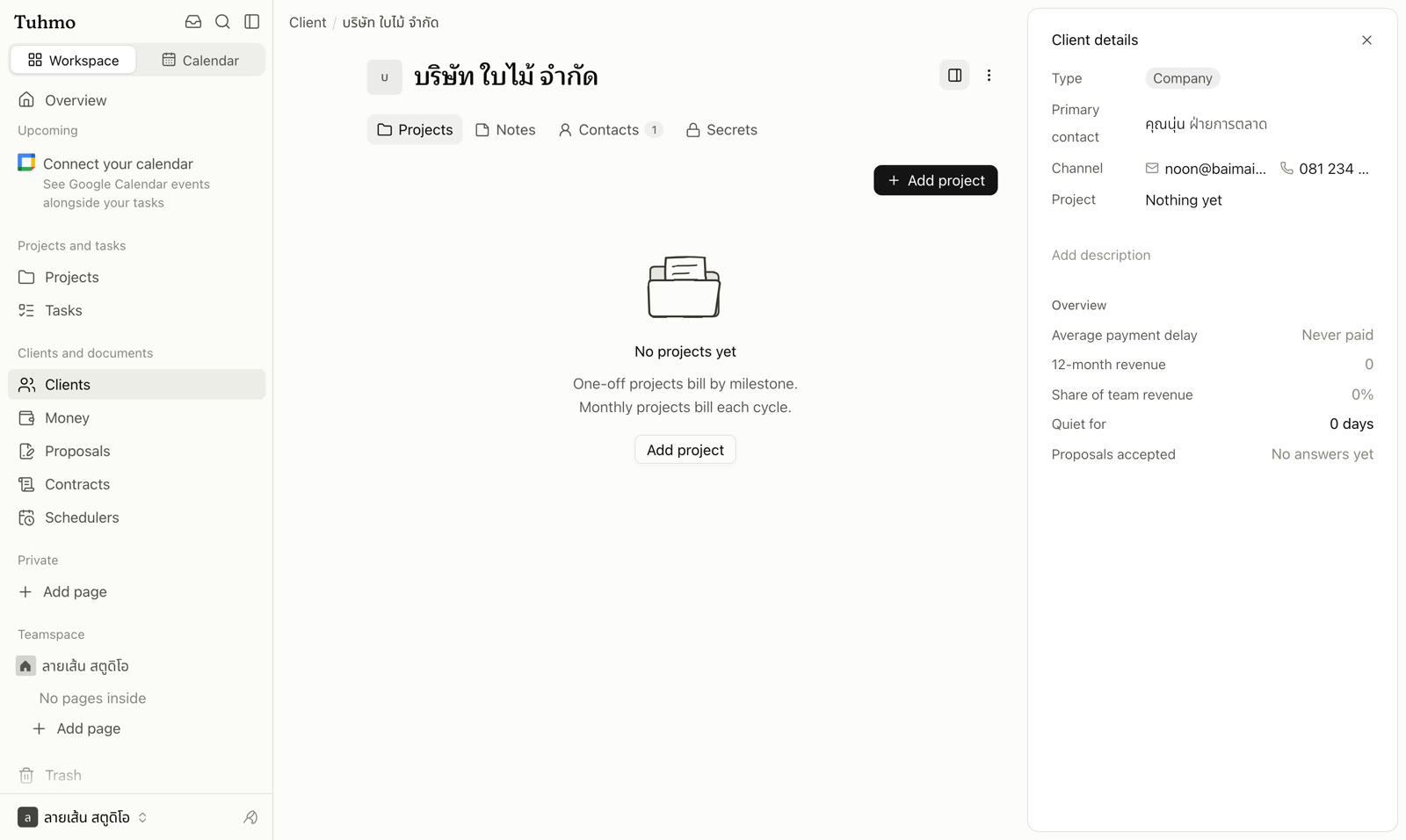
Add a client
- 1
Go to Clients in the sidebar.
- 2
Choose the "Clients" tab for people, or the "Companies" tab for businesses.
- 3
Click "Add client" or "Add company".
- 4
Fill in the "Client name" or "Company name" and an optional note, then click the add button to save.
No field is required. Once saved, click the name to open the client page, which has Projects, Notes, Contacts and Secrets tabs (Secrets only for people with access).
Add a contact
- 1
Open the client page and go to the "Contacts" tab.
- 2
Click "Add contact".
- 3
Enter a name and role, then click "Add channel" to add contact channels such as email, phone, LINE, Telegram, WhatsApp, Facebook, Instagram, X or a website.
- 4
Save.
Tick "Primary contact (the first person to contact about payments)" for whoever handles payments. It is already ticked for a client's first contact.
Email works for sending documents as soon as it's filled in. Chat channels need the client to confirm once: click ⋯ at the end of the contact's row and choose Link to get a code the client confirms in the chat.
Edit or delete a client
Click ⋯ at the top right of the client page and choose "Edit client" or "Delete client". Deleting a client moves their services, projects, invoices and tasks to Trash, where you can restore them.
Was this article helpful?
Next
Client portal link
The client portal is a web page where your client can see every document you've sent them from one link, without creating an account.
Still have questions?
On this page