

Recurring bills
Set the amount and billing cycle once, then invoice every cycle.
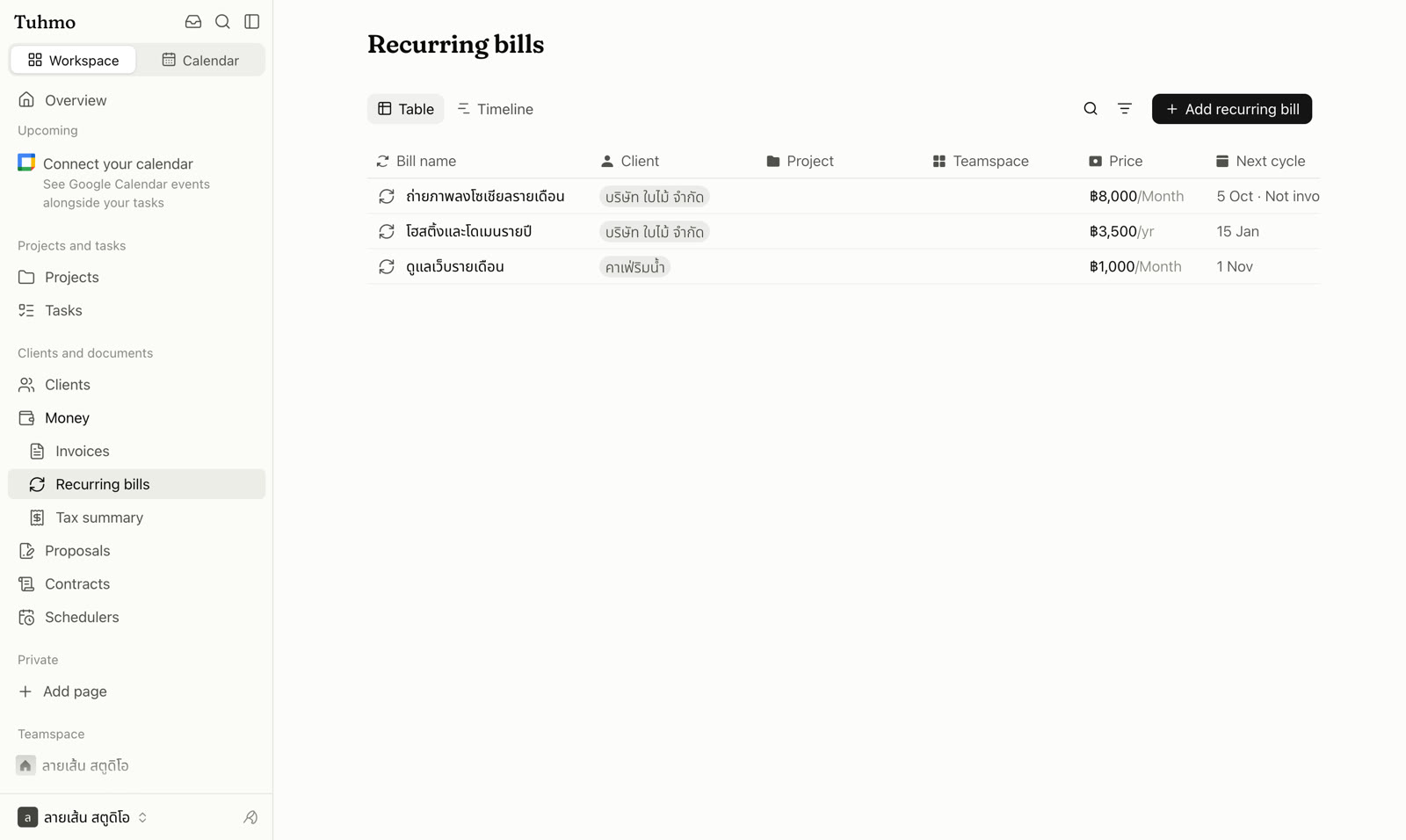
Create a recurring bill
- 1
Go to Money › Recurring bills and click Add recurring bill.
- 2
Enter a Bill name and choose a Client and Project.
- 3
Enter the Amount per cycle, choose a Billing cycle (Monthly or Yearly) and the Due on day.
- 4
Choose a Billing method, then click Create and set up.
Billing methods
- Manual (edit the invoice before sending): click Invoice this cycle yourself when the cycle arrives.
- Automatic when the cycle arrives: an invoice is issued for you on the due date.
A bill needs a client before it can be invoiced. If none is set, choose one in the right panel of the bill page.
More settings on the bill page
The right panel lets you set the Cycle start date, currency, Invoice in currency, payment method and Withholding tax %. Line items are edited on the page, just like an invoice.
Pause, resume or cancel
Change the bill's Status to Active, Paused or Cancel. If a cycle was invoiced by mistake, use Cancel this period's invoice. The invoice is deleted and that cycle can be invoiced again.
If your current plan doesn't include automatic invoicing, the bill shows that automatic invoicing is paused and you issue each cycle manually.
Was this article helpful?
Next
Automatic payment reminders
Send clients reminders on a schedule you set, until the invoice is marked paid.